
Security Access COntrol
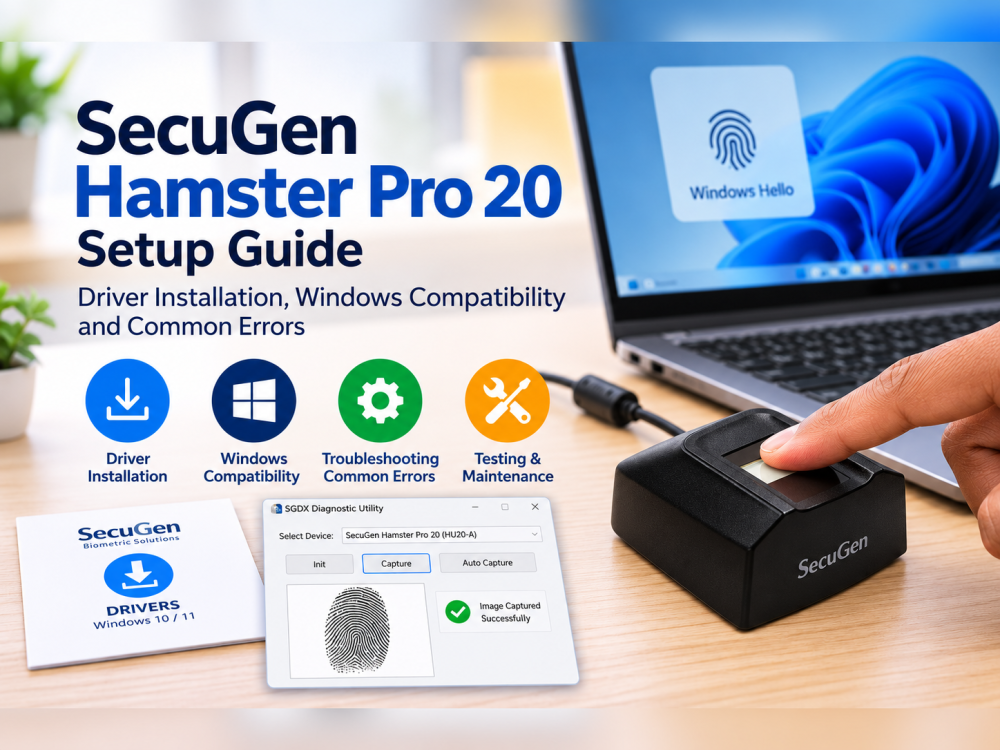
SecuGen Hamster Pro 20 Driver Setup Guide
Oct
A fingerprint scanner can appear perfectly functional until Windows fails to recognize it or an authentication application stops responding. With the SecuGen Hamster Pro 20, these problems often involve driver selection, USB connectivity, or software configuration rather than a damaged sensor.
The SecuGen Hamster Pro 20 driver enables communication between the HU20-A fingerprint reader and compatible Windows applications. Choosing the correct installation package is essential for reliable device detection and fingerprint capture.
The HU20-A is designed for fingerprint capture and identity verification. However, the correct setup depends on the operating system, the exact scanner variant, and the biometric software being used.
This guide explains how to install the appropriate drivers, troubleshoot common errors, test fingerprint capture, and configure compatible Windows sign-in features.
Key Takeaways
- The Hamster Pro 20 HU20-A supports Windows 10 and Windows 11.
- SecuGen provides standard Windows drivers and separate Windows Biometric Framework (WBF) drivers.
- HU20, HU20-A, HU20-AL, and HU20-AP are distinct variants that must be identified correctly.
- USB detection and driver errors should be resolved before troubleshooting biometric applications.
- SecuGen’s diagnostic tool can test initialization, image capture, and automatic fingerprint detection.
- A working fingerprint reader still requires compatible software for attendance, enrollment, or identity verification.
Understanding the SecuGen Hamster Pro 20 HU20-A
The SecuGen Hamster Pro 20 HU20-A is a compact USB fingerprint scanner designed for biometric identification and authentication.
It features a 500 DPI optical sensor that captures fingerprint images at 300 × 400 pixels. The reader supports USB 2.0 Hi-Speed connectivity and receives power directly through its USB connection.
Furthermore, the HU20-A uses a rugged optical sensor with IP54-rated protection against dust and water ingress.
SecuGen incorporates technologies such as Auto-On and Smart Capture to support fingerprint detection and image acquisition when compatible software uses the relevant SDK functions.
These features make the device suitable for biometric applications developed for offices, educational institutions, financial services, and other professional environments.

SecuGen
However, the scanner is not a complete attendance or access control system by itself. Such functions require appropriate software and, where necessary, additional infrastructure.
HU20-A vs HU20, HU20-AL and HU20-AP: Which Model Do You Have?
One commonly overlooked issue during installation is the model number.
Although these devices belong to the Hamster Pro 20 family, their internal sensor versions and driver requirements are not identical.
| Model | Internal sensor | Driver distinction |
|---|---|---|
| HU20 | U20 | U20-specific manual driver |
| HU20-A | U20-A | U20-A driver family |
| HU20-AL | U20-AL | U20-AL/U20-AP driver family |
| HU20-AP | U20-AP | U20-AL/U20-AP driver family |
SecuGen currently identifies HU20-AL as its current Hamster Pro 20 model. Nevertheless, HU20-A remains listed as supported on the manufacturer’s driver page.
SecuGen
+1
The original HU20 also differs in USB interface specifications: it uses USB 1.1 Full-Speed, while the HU20-A uses USB 2.0 Hi-Speed.
Before installing any drivers, check the model number on the underside of your scanner. Do not assume that every Pro 20 unit requires the same manual driver package.
How to Install the SecuGen Hamster Pro 20 Driver
Windows may automatically install the required driver when you connect the reader. If this does not happen, SecuGen provides an official installer.
Before installing the SecuGen Hamster Pro 20 driver, confirm that your device is the HU20-A variant. Different Hamster Pro 20 models may require different manual driver packages.
Step 1: Connect the fingerprint scanner
Connect your HU20-A directly to a working USB port on your Windows computer.
Avoid USB hubs or extension cables during initial setup. A direct connection makes it easier to identify USB communication problems.
Wait for Windows to detect the reader and attempt installation.
Step 2: Download the correct Windows driver
Open the official SecuGen driver download page.
Under Windows Drivers, locate the SecuGen Windows Driver Installer.
As of October 2026, the manufacturer lists:
- SecuGen Windows Driver Installer, version 3.0.0.3, recommended for supported models.
- U20-A/U20-ASF-U manual driver, version 1.0.3.6, for devices built around those sensors.
The general installer supports HU20-A alongside other SecuGen readers. Therefore, most users should start with the recommended installer rather than the manual driver package.
SecuGen
Step 3: Install the software
- Download the recommended installer from SecuGen.
- Close any biometric software currently using the scanner.
- Run the installer using an account with appropriate installation permissions.
- Follow the installation instructions.
- Restart Windows if prompted.
- Reconnect the HU20-A.
Afterward, allow Windows to finish recognizing the hardware before launching your biometric application.
Step 4: Verify the installation
Right-click the Windows Start button and select Device Manager.
Look for the SecuGen device under the relevant hardware category. Its category and displayed name may depend on the installed driver.
Open the device properties and check for reported errors.
A device that appears without a driver warning has passed an important initial check. However, you should still perform a fingerprint capture test to confirm operation.
SecuGen Hamster Pro 20 Driver Compatibility with Windows
SecuGen lists both Windows 10 and Windows 11 as supported operating systems for the HU20-A.
It also lists several Windows Server versions. However, software compatibility depends on the intended application and driver.
| Operating system | Manufacturer support |
|---|---|
| Windows 11 | Supported |
| Windows 10 | Supported |
| Windows Server 2022 | Supported |
| Windows Server 2019 | Supported |
| Windows Server 2016 | Supported |
SecuGen additionally provides SDK resources for supported Linux and Android applications. These require the relevant integration environment; installing a Windows driver does not enable them on those platforms.
SecuGen
For Windows systems, distinguish between two important driver types.
Standard Windows drivers: Used to communicate with the scanner in applications that require SecuGen’s conventional device interface.
WBF drivers: Used with the Windows Biometric Framework, including compatible Windows Hello configurations.
Choosing the correct driver type is important because a scanner can function in one application but remain unavailable in another.
How to Set Up SecuGen Hamster Pro 20 with Windows Hello
Windows Hello allows supported fingerprint readers to authenticate users without repeatedly entering their account passwords.
SecuGen provides a WBF driver package that supports the HU20-A.
To begin:
- Visit the manufacturer’s official driver page.
- Find the WBF and Windows Hello Drivers section.
- Download the standard SecuGen WBF Driver Installer, not the legacy WBF Driver Installer (c).
- Install the driver and restart Windows if required.
- Open Settings > Accounts > Sign-in options.
- Select Fingerprint recognition (Windows Hello).
- Follow the on-screen fingerprint enrollment instructions.
Windows Hello normally requires a configured Windows Hello PIN. Its availability may also depend on device settings, Windows Biometric Service, and organizational policies.
If fingerprint recognition remains unavailable, verify the installed WBF driver and ensure Windows Biometric Service is enabled.
SecuGen
SecuGen Hamster Pro 20 Not Detected? Troubleshooting USB Problems
When the fingerprint reader is not detected, begin with the simplest checks.
First, disconnect the device and reconnect it to another USB port.
Next, inspect the cable for visible damage. Avoid connecting the reader through unpowered hubs during testing.
If Windows still does not recognize it, check Device Manager for an unknown device or warning symbol.
Additionally, test the scanner on another compatible computer with the appropriate drivers installed.
If the reader works on the second computer, the original system may have a driver or USB configuration problem.
If neither computer recognizes it, further hardware assessment may be necessary.
If Windows fails to recognize your scanner, reinstalling the SecuGen Hamster Pro 20 driver may resolve missing device files or incorrect driver associations. Always use SecuGen’s official installation packages.
How to Test the HU20-A Using SecuGen’s Diagnostic Tool
SecuGen provides a diagnostic utility known as SGDX. This tool helps determine whether the fingerprint reader can communicate with the computer and capture fingerprint images.
Download it from the Other Downloads section of the manufacturer’s official drivers page.
Test 1: Device initialization
Open the diagnostic utility with the scanner connected.
Select the device and click Init.
A successful result confirms that the utility can initialize the selected fingerprint reader.
If initialization fails, record the displayed error before proceeding.
Test 2: Fingerprint image capture
Place your finger centrally on the sensor and click Capture.
The utility should display a fingerprint image when capture succeeds.
If no image appears, verify finger placement and review the reported error.
Test 3: Automatic fingerprint detection
Enable the Auto Capture checkbox.
Then place your finger on the sensor.
The application should automatically capture an image when the device and supported function operate correctly.
These tests help separate basic reader functionality from problems within attendance or authentication software.
SecuGen
Troubleshooting SecuGen Hamster Pro 20 Driver Errors
Error 1: No fingerprint device found
This message indicates that the diagnostic utility cannot locate a connected reader.
Check the USB connection, reconnect the scanner, and select Refresh in the diagnostic tool.
Where several readers are connected, select the correct device from the dropdown menu.
Error 2: Cannot load driver
According to SecuGen, this message indicates a driver-loading problem rather than necessarily pointing to defective hardware.
Reinstall the appropriate manufacturer driver, reconnect the scanner, and repeat the initialization test.
Error 3: Wrong Image
This error can occur when the finger is not positioned properly during capture.
Place the pad of your finger firmly and evenly on the sensor. Keep your finger still until the scanning process finishes.
If necessary, reposition the finger and repeat the test.
Error 4: Scanner works, but the attendance application fails
If SGDX captures fingerprint images successfully, the scanner’s basic imaging functions are operating.
However, the attendance application may still lack the appropriate integration.
Check whether the software supports the HU20-A, which driver interface it expects, and whether it requires SecuGen SDK components or a WebAPI client.
For browser-based biometric applications, SecuGen provides a separate WebAPI integration platform. A Windows device driver alone does not guarantee that a website can access the scanner.
SecuGen Corporation
How to Improve Fingerprint Capture Accuracy
Even with the correct software installed, fingerprint image quality can affect authentication.
SecuGen’s Smart Capture technology is designed to work with difficult fingerprints, including dry, moist, or scarred fingers.
Nevertheless, user technique still matters.
For more consistent scanning:
- Place the centre of your fingerprint over the sensing area.
- Keep your finger steady during capture.
- Avoid excessive pressure.
- Ensure that the scanning surface is reasonably clean.
- Follow the application’s instructions during enrollment.
- Use the diagnostic tool to identify poor-quality image captures.
For cleaning and care, consult SecuGen’s official fingerprint reader user guide. Avoid abrasive materials or cleaning chemicals that could damage the sensor or surrounding housing.
Frequently Asked Questions
Does the SecuGen Hamster Pro 20 HU20-A work with Windows 11?
Yes. SecuGen lists Windows 11 and Windows 10 among the supported operating systems. The appropriate driver and compatible application are still required.
Which driver should I download for HU20-A?
Start with the manufacturer’s recommended SecuGen Windows Driver Installer. For manual installation, select the U20-A driver family. Use the standard SecuGen WBF Driver Installer when configuring compatible Windows Hello functionality.
Why does my scanner work in Windows but not in Chrome?
A browser-based biometric application may require SecuGen WebAPI components and application-specific integration. Contact the software provider to verify browser and scanner compatibility.
Can I use the HU20-A for employee attendance?
Yes, when connected to attendance software that supports this reader. The scanner captures fingerprints, but the application manages employee enrollment, attendance records, and reporting.
Can I connect the scanner to another computer without reinstalling the software?
The second computer also needs the appropriate driver and compatible biometric application. Existing fingerprint records may be stored by the application rather than inside the reader.
Is the HU20-A interchangeable with the HU20-AL?
Both belong to the Hamster Pro 20 family, but they use different sensor variants and may require different manual drivers. Confirm application compatibility before replacing one with the other.
Getting Your SecuGen Hamster Pro 20 Working Correctly
Successful biometric deployment depends on more than simply connecting a USB fingerprint reader.
Start by identifying the HU20-A model, installing the correct driver, and testing the sensor using SecuGen’s diagnostic utility. Then verify that the intended authentication or attendance software supports the device.
For organizations looking for biometric hardware in Kenya, Dataworld Kenya lists the SecuGen Hamster Pro 20 HU20-A Fingerprint Scanner alongside other biometric security products.
Keeping the SecuGen Hamster Pro 20 driver correctly installed helps reduce detection problems. However, successful fingerprint authentication also depends on compatible biometric software and proper sensor operation.
Choosing hardware that matches your existing software environment can reduce installation difficulties and help maintain reliable fingerprint authentication.
Official manufacturer sources
- SecuGen Hamster Pro 20 — Official Product Specifications
- SecuGen — Windows Drivers and WBF Downloads
- SecuGen — Diagnostic Tool and Error Troubleshooting
- SecuGen — Fingerprint Reader User Guides
- SecuGen WebAPI — Browser Integration