
Security Access COntrol
SecuGen Hamster Plus Not Working? A Complete Guide to Driver Installation and Troubleshooting
Oct
Your SecuGen Hamster Plus fingerprint scanner was working perfectly yesterday. Today, Windows cannot detect it, the software refuses to capture fingerprints, or an unexpected driver error interrupts biometric authentication. Before assuming the device is faulty, it is worth checking a few common causes.
Most fingerprint reader problems fall into three categories: USB connectivity, driver installation, or fingerprint capture. This guide explains how to identify the problem and restore normal operation.
Key Takeaways
- The SecuGen Hamster Plus (HSDU03P) supports Windows 10 and Windows 11.
- Incorrect, missing, or corrupted drivers can prevent fingerprint detection.
- USB connection issues may cause the scanner to disappear from Windows.
- Poor finger positioning and a dirty sensor can affect fingerprint capture.
- SecuGen provides an official diagnostic utility for testing its readers.
- Windows Hello requires the appropriate Windows Biometric Framework (WBF) driver.
Understanding the SecuGen Hamster Plus Fingerprint Scanner
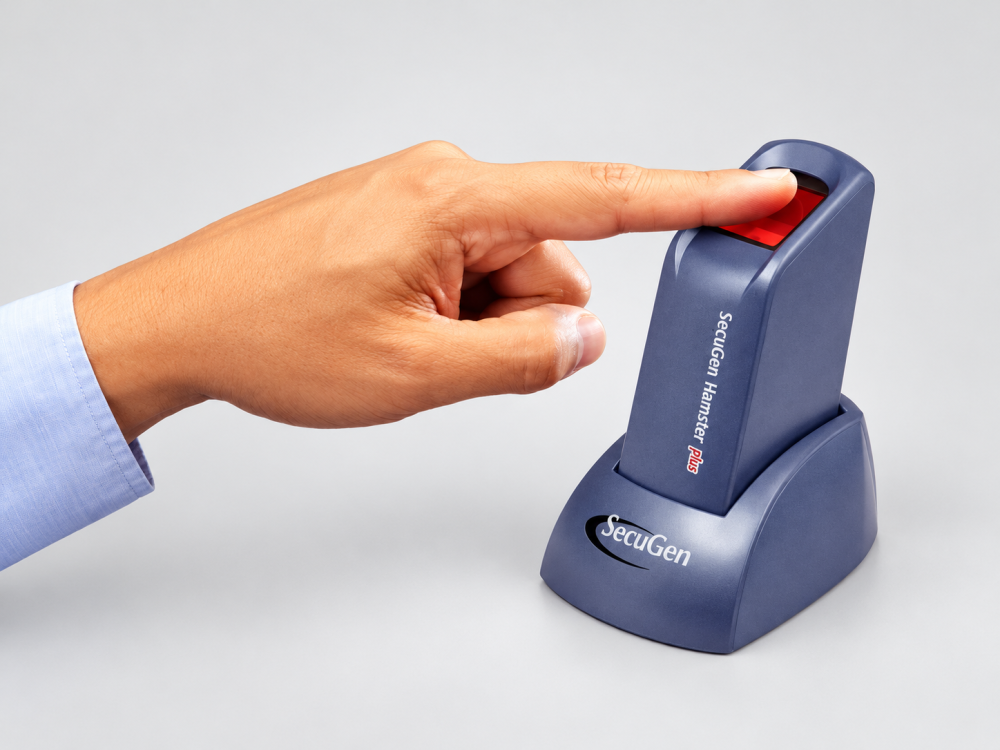
The SecuGen Hamster Plus fingerprint scanner is a USB biometric reader designed for fingerprint identification, verification, and authentication.
Its HSDU03P model uses a 500 DPI optical sensor with SecuGen’s patented SEIR technology. The device also supports Auto-On and Smart Capture features when used with compatible software developed using SecuGen SDKs.
These capabilities make the scanner suitable for biometric applications in offices, institutions, and other organizations. However, successful operation depends on having the correct device drivers and compatible software.
How to Install SecuGen Hamster Plus Drivers on Windows
An incorrect driver installation can prevent Windows from communicating with the fingerprint reader. Fortunately, the manufacturer provides official drivers for supported operating systems.
Step 1: Confirm Your Device Model
Check the product label to identify your fingerprint scanner.
For the standard Hamster Plus, the model number is HSDU03P. This matters because the Hamster Plus and Hamster Pro 20 belong to different product families and use different underlying sensors.
Step 2: Download the Correct Driver
Visit the official SecuGen driver download page.
Under Windows Drivers, locate the SecuGen Windows Driver Installer and confirm that HSDU03P appears among the supported devices.
For normal application use, download the recommended installer. For Windows Hello, select the separate SecuGen WBF Driver Installer (c), which specifically supports the Hamster Plus.
Step 3: Install and Connect the Scanner
- Connect the fingerprint reader directly to a working USB port.
- Allow Windows to search for and install the appropriate driver.
- If automatic installation fails, run the downloaded SecuGen installer.
- Follow the installation instructions and restart Windows if prompted.
- Reconnect the reader and check whether Windows recognizes it.
Avoid downloading unidentified driver packages from third-party websites. Official manufacturer downloads reduce the risk of installing incompatible or unwanted software.
SecuGen Hamster Plus Not Detected? Check These Common Problems
When Windows does not recognize the scanner, begin with the physical connection before changing any software settings.
Check the USB Port
Disconnect the scanner and connect it to another USB port on the computer.
If you are using a USB hub, docking station, or extension cable, try connecting the reader directly. A poor connection may prevent the device from communicating reliably with Windows.
Also inspect the cable and USB connector for visible damage.
Check Windows Device Manager
Device Manager can help determine whether Windows recognizes the connected hardware.
- Right-click the Windows Start button.
- Open Device Manager.
- Look for the reader under biometric devices or other device categories.
- Check whether any related entry displays a yellow warning symbol.
- Open the device properties to review its reported status.
An unknown device or driver warning may indicate an installation problem. If necessary, reinstall the official driver and reconnect the scanner.
Test the Reader on Another Computer
If the scanner still does not appear, connect it to another compatible computer with the proper drivers installed.
If it works there, investigate the original computer’s USB ports, drivers, and system configuration.
If neither computer detects the scanner, the device or cable may require further technical assessment.
How to Fix Fingerprint Capture Problems
Sometimes Windows detects the reader correctly, but fingerprint registration or authentication still fails.
The first thing to check is finger placement.
SecuGen recommends positioning the pad of your finger at the centre of the scanning surface. Apply even pressure and keep your finger still during capture.
Avoid pressing only the fingertip against the sensor. Poor positioning can produce incomplete fingerprint images.
Although Smart Capture technology is designed to handle difficult fingerprints, dry skin, excessive moisture, dirt, or damaged fingerprint patterns may still affect capture quality.
Try another enrolled finger where your application allows it. Also verify that the biometric software supports your reader and is configured correctly.
How to Test the Scanner Using SecuGen’s Diagnostic Tool
SecuGen provides a diagnostic utility that helps distinguish hardware connection problems from fingerprint capture issues.
You can obtain it from the Other Downloads section of the official drivers page.
After downloading the utility:
- Connect your scanner and launch the diagnostic tool.
- Select the connected device from the list.
- Click Init to test device initialization.
- Place your finger on the sensor and click Capture.
- Check whether a fingerprint image appears.
- Enable Auto Capture to test automatic finger detection.
A successful initialization indicates that the utility can communicate with the scanner. Successful image capture provides additional evidence that its basic scanning functions are working.
Understanding Common Diagnostic Errors
| Error message | What to do |
|---|---|
| No fingerprint device found | Check the USB connection, select the correct device, and click Refresh. |
| Cannot load driver | Reinstall the official driver, then disconnect and reconnect the reader. |
| Wrong Image | Position your finger firmly and evenly on the sensor before trying again. |
If the diagnostic tests succeed but your attendance or authentication software still fails, investigate the application’s settings, device compatibility, and software integration.
Can SecuGen Hamster Plus Work with Windows Hello?
Yes. SecuGen provides a Windows Biometric Framework driver for the Hamster Plus, allowing compatible Windows installations to use fingerprint sign-in.
However, the regular SecuGen Windows driver and the WBF driver serve different purposes.
For Windows Hello, install the appropriate WBF Driver Installer (c), then open Settings > Accounts > Sign-in options.
Choose fingerprint recognition and follow the enrollment instructions if the option is available.
Your Windows configuration, biometric service, and organizational security policies can affect whether fingerprint sign-in is enabled.
How to Clean and Maintain Your Fingerprint Scanner
A contaminated scanning surface can interfere with image capture, particularly in busy offices where several people use the same device.
Regular cleaning helps maintain consistent performance.
- Disconnect the scanner before cleaning.
- Wipe the sensor using a clean tissue or soft cloth.
- For stubborn dirt, use a cloth lightly dampened with an appropriate cleaning solution.
- Remove excess moisture and allow the surface to dry.
- Avoid pouring cleaning liquids directly onto the device.
SecuGen permits suitable disinfectants on the glass sensor but warns against strong solvents, acids, and caustic substances that may damage the plastic housing.
Frequently Asked Questions
Why is my SecuGen Hamster Plus not working on Windows 11?
Possible causes include an incorrect driver, USB connection problem, or incompatible biometric application. Confirm the HSDU03P model, install the correct driver, and test the reader using SecuGen’s diagnostic utility.
Where can I download the HSDU03P driver?
Download it from SecuGen’s official website. Select the standard Windows installer or the appropriate WBF package based on your application requirements.
Why does my fingerprint scanner show “Cannot load driver”?
This usually indicates that the diagnostic utility cannot load the required device driver. Reinstall the correct package and reconnect the scanner.
Does the SecuGen Hamster Plus work without internet access?
The reader does not inherently require a continuous internet connection for local fingerprint capture. However, your biometric application may need internet access for activation, database synchronization, or remote authentication.
What should I do if the scanner works but my software cannot detect it?
Confirm that the application supports the HSDU03P model, uses the required driver and has the necessary biometric integration. Contact the software provider if the SecuGen diagnostic utility works but the application does not.
Keep Your Biometric System Working Reliably
A fingerprint scanner that suddenly stops working does not always need replacement. Checking the USB connection, installing the correct driver, improving finger placement, and running the diagnostic utility can resolve many common problems.
For organizations planning a new biometric installation or replacing faulty equipment, Dataworld Kenya supplies the SecuGen Hamster Plus Fingerprint Scanner and other ICT solutions.
Explore the available products or contact Dataworld Kenya for assistance with selecting suitable biometric hardware for your application.